How to Take Private Full-Page Screenshots and Screen Recordings in Chrome (No Account, No Watermark, No Upload)
Most screenshot extensions send your capture to their servers, ask for an account before you can save anything, or stamp a watermark on the free plan. A screenshot can hold client data, an invoice, a medical record, a private message. This guide shows how to capture a full page, blur what is private, export it in the format you need and record your screen with no time limit, without anything leaving your browser.
One thing up front: the tool in this guide, ClarShot, is our own. We built it at Voicu.app because we could not find a capture tool we would trust with client screens. Everything below is verifiable in your own DevTools, and the extension is free.
What "private" means for a screenshot tool
A local-first screenshot tool is one that makes zero network requests: capture, annotation, redaction, export and recording all run on your device, with no account and no server. If the tool never talks to a server, there is nothing on the other side that can receive, store or leak your image.
Three habits of most capture tools break that: a sign-up before you can save, an upload "to process" the image, and a watermark or a time cap on the free plan. Each one means your capture, or your identity, went somewhere.
What you need
- Chrome, Edge or Brave (any Chromium browser).
- ClarShot from the Chrome Web Store: free, no account.
- Two minutes.
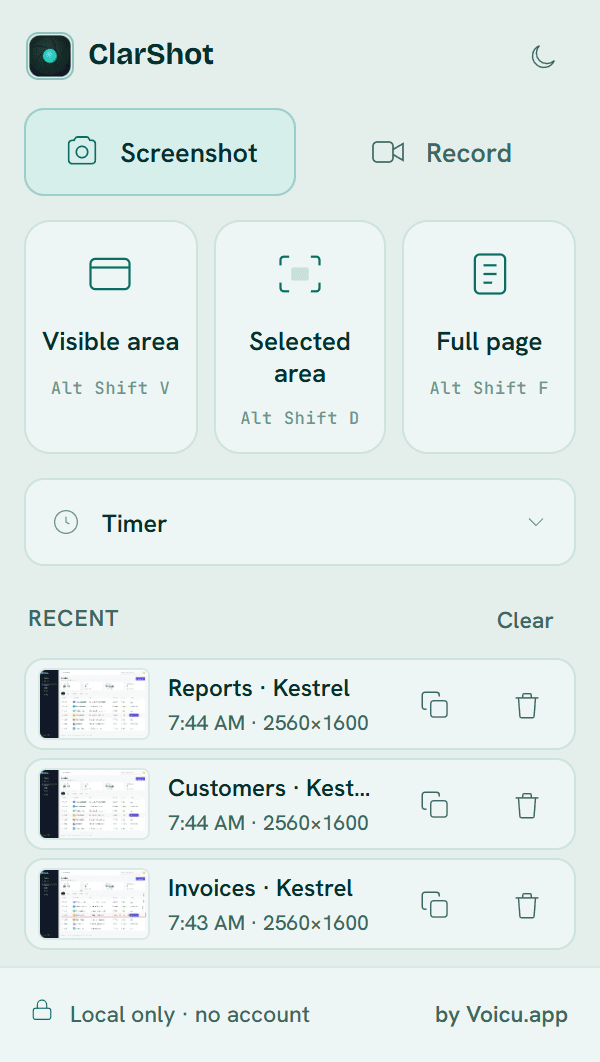
Step 1: Capture the visible area, a selected area, or the whole page
Click the ClarShot icon or use a shortcut. The capture opens in the editor a moment later.
- Visible area (Alt+Shift+V): exactly what you see in the tab.
- Selected area (Alt+Shift+D): drag a frame; the result is pixel-exact on high-DPI screens.
- Full page (Alt+Shift+F): ClarShot scrolls the page and stitches it, including sticky headers and lazy-loaded images. If the page is very long, press Stop & keep and you keep what was captured so far.
- Timer: for menus and hover states that vanish on click, take the visible area after a countdown.
Some pages cannot be captured by any extension: Chrome's own pages (chrome://) and the Web Store. ClarShot tells you the page cannot be captured instead of giving you a blank image.
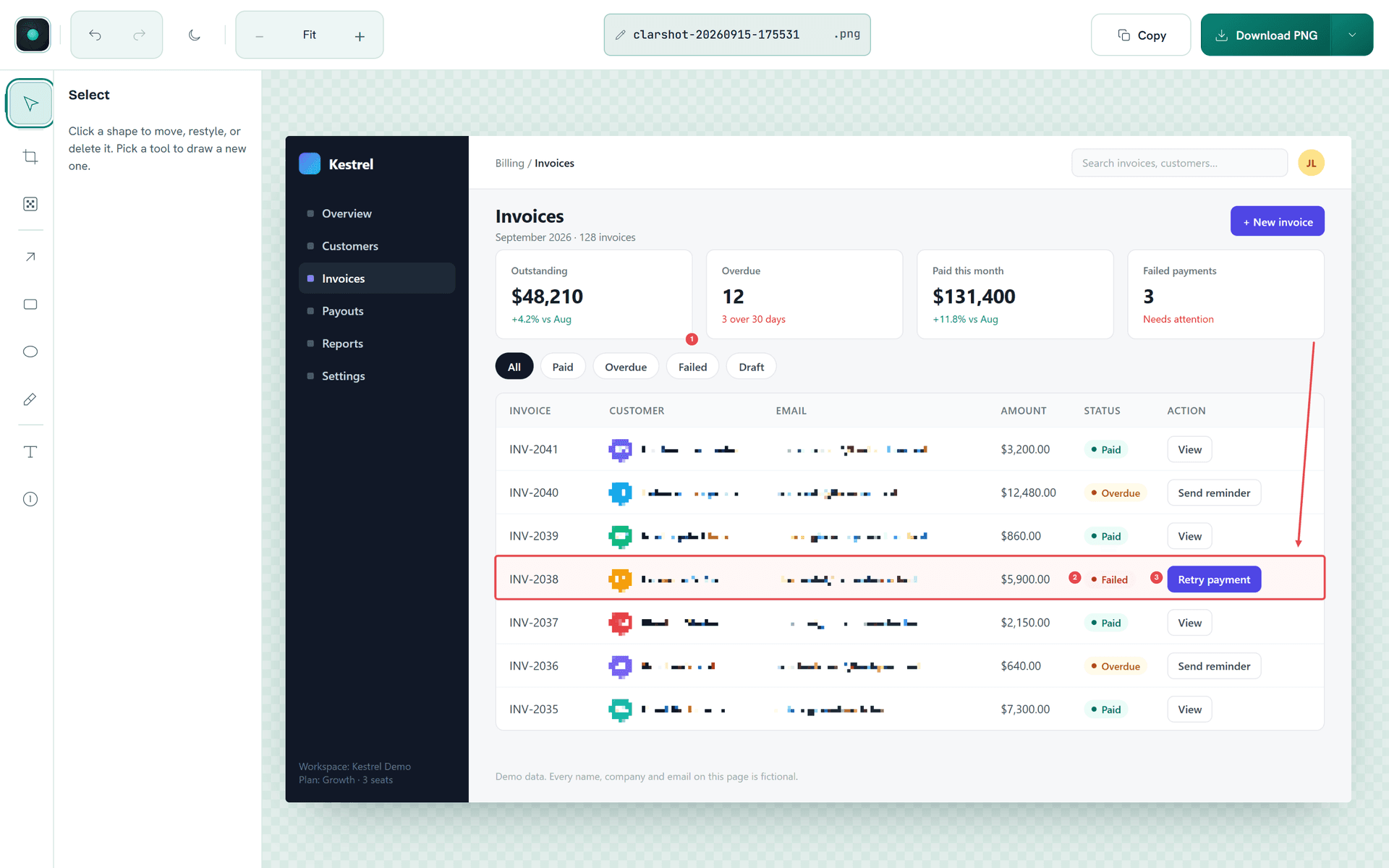
Step 2: Annotate, then hide what is private
Eight tools, no learning curve: arrow, rectangle, ellipse, highlighter, text, step numbers, blur or pixelate, and crop.
The redaction matters most. When you blur or pixelate a region, the pixels are replaced in the exported file. It is not a layer someone can remove later; the original data is gone from the image.
Crop last. If you press Download or Copy while a crop frame is still pending, the editor asks whether to apply it or discard it, so you never export the wrong area by accident.
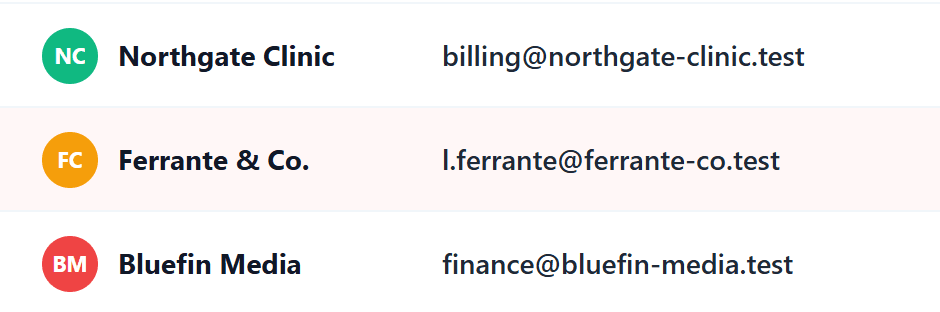
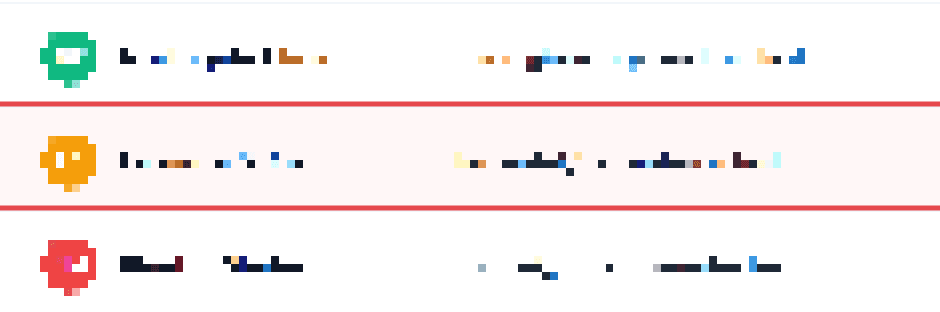
Step 3: Export in the format you need, and make PNGs smaller
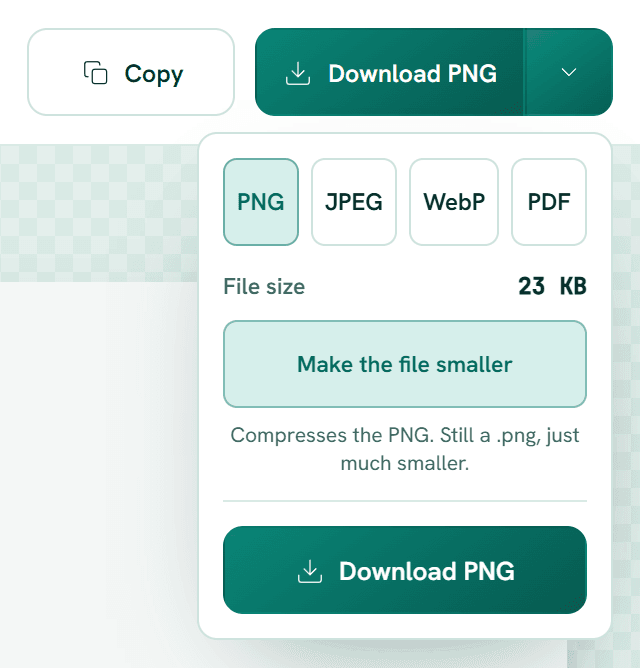
Download as PNG, JPEG, WebP or PDF, or copy the image to the clipboard. The export menu shows the file size before you save.
For PNGs there is a one-click Make the file smaller. It compresses the PNG so it stays a .png, just much smaller: useful for tickets, docs and email, where a 2 MB screenshot is a nuisance.
Step 4: Record your screen with no time limit
Press Alt+Shift+S or open the Record tab in the popup. Record the current tab, a window or the whole screen, with your microphone and the tab's audio. Add your camera as a bubble in a corner, or record just the camera.
A small control bar floats above everything while you record: elapsed time, pause, mute and Stop. It is a real window, always on top, and it is not part of the recording.
Recordings are saved as MP4 where your device supports it, WebM everywhere else. There is no time limit: free disk space is the only cap.

Step 5: Find it again: the Recent list
The last 10 images you saved or copied stay in the popup's Recent list, on this device, until you remove them. Open one in the editor again or copy it with one click. A capture you closed without exporting is not kept, and nothing is synced anywhere.
How to verify that nothing left your browser (2 minutes)
You do not have to take our word for it.
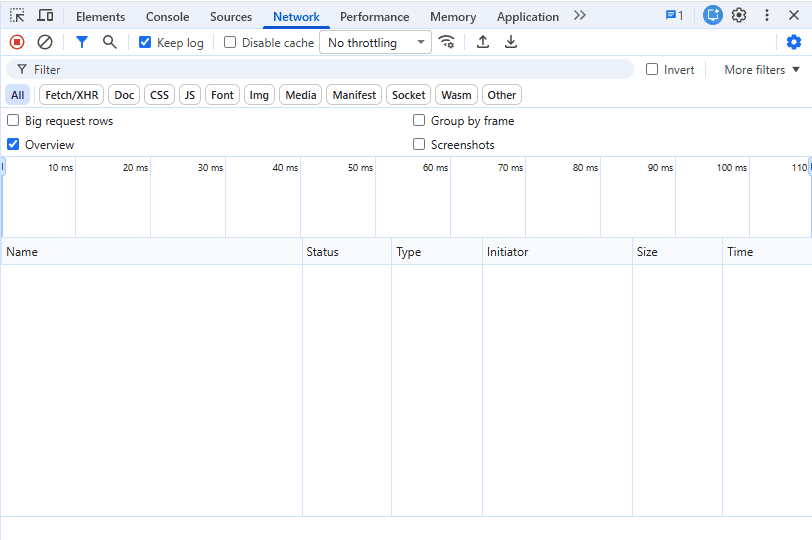
- Open a capture in the editor, press F12 and pick the Network tab.
- Clear the list, then annotate, download and copy.
- The list stays empty. That is the whole proof.
The install prompt tells the same story: six permissions, each explained on clarshot.com, and none of them is "read and change all your data on all websites".
How this compares
Without naming products: this is what the three common options give you.
| Cloud screenshot tools | Chrome's built-in capture | ClarShot | |
|---|---|---|---|
| Account required | Usually | No | No |
| Image uploaded | Yes | No | No |
| Full-page capture | Yes | No | Yes |
| Annotate and redact | Yes, often after upload | No | Yes, on device |
| Screen recording | Often time-capped on free | No | Yes, no time limit |
| Watermark on free | Often | No | No |
| Verifiable in DevTools | No | n/a | Yes |
Questions
Is ClarShot really free?
Yes. Capture, annotation, redaction, export and recording are free, with no watermark and no time limit. Optional paid features may come later; nothing that is free today gets paywalled.
Does it work offline?
Yes. There is no server in the loop, so capture, annotation and export work with Wi-Fi off.
Where do my screenshots go?
To your Downloads folder or your clipboard. The last 10 images you saved or copied stay in the popup's Recent list on your device until you remove them. Nothing is uploaded.
Does it work in Edge or Brave?
Yes. It is a Chrome (Manifest V3) extension and runs on Edge, Brave and other Chromium browsers.
Can it capture Chrome's own pages?
No. Chrome blocks capture on chrome:// pages and the Web Store for every extension. ClarShot tells you the page cannot be captured instead of producing a blank image.
How do I verify it makes no network requests?
Open a capture in the editor, press F12, open the Network tab, clear it, then annotate, download and copy. The list stays empty.
Try it, or have one built
ClarShot is free at clarshot.com. If your team needs a browser extension of its own, capture, sales overlays, internal tools, we build them the same way: privacy-first, store-ready.